|
Senior Member
Iscritto dal: Dec 2005
Messaggi: 2723
|
//Creazione Online a piacimento del file autoexec.cfg :http: http://cell-systems.net/cfg-maker/cl...-autoexec-cfg/
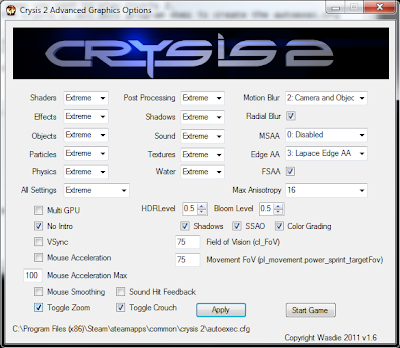
//Crysis 2 Advanced graphic options 1.7 http://forums.steampowered.com/forum....php?t=1807934
//Crysis 2 Advanced graphic options 1.5 (funzionante 100%,) http://www.mediafire.com/?pbyx1ywl3u5twyj
Quote:
1. Once you have unziped place anywhere you want.
2. Delete any autoexec.cfg files found in the Crysis 2 root folder. (if you're asking what that is, don't worry about it)
3. Delete any target commands you may have put on the shortcut as they will override the autoexec.cfg that is created
4. Run the Crysis2AdvancedGraphicsOptions.exe
5. Hit apply once all settings are set
For extreme textures to work, turn off MSAA. Some people have noticed an upgrade in texture quality.
If you are going to use multi-GPU, make sure post processing is turned to medium as higher will cause crazy flickering.
Some Default Values:
HDR Level and Bloom Level's default value were both 1. 0 will turn them off.
Motion Blur's default value is 1. You can set it one higher with some noticeable effects. The highest vanilla Crysis 2 went for all default settings was "extreme" which equals 3. This program will allow you to set them to my "extreme" which sets them all to 4. This could increase graphical quality.
Also I'll be doing a pretty big re-write of the code this week. I know some of you are still having a lot of issues with auto detecting the root Crysis 2 folder. These fixes will be coming.
|
//BUG NOTI,FIX
-Crysis 2 flickering on CrossfireX systems
-Installare ultimi driver AMD 11.3 cap3
-" aumentare la luminosita' di 5 e poi riportarla al valore precedente" soluzione di Mc®.Turbo-Line
- altrimenti prova http://blog.radeonpro.info/2011/03/c...rossfirex.html
-Altri Bug
Quote:
1# Crysis 2 Not Tracking Stats – Experience Bug
Its seem like Crytek servers are experiencing problems in correctly retrieving the complete statistics. This isn’t something that you can fix unless and until they fix it back end.
2# Crysis 2 – How to Change Language
Go to X:\Electronic Arts\Crytek\Crysis 2 folder
Find and Open in Notepad file system.cfg
Change last line “g_language = your language” to “g_language = English”.
3# Crysis 2 – Screen and Bloom Flickering Fix
This has happened mostly for people with Crossfire or SLI. Normally running the game on single GPU would fix the issue, but if it doesn’t try to run the game on a different preset profile from your graphics control panel.
In case of ATI, Disable Catalyst AI from CCC (Disables crossfire. Yes, even dual-GPUs need crossfire. You’ll get an FPS drop, not as large as running it windowed, though).
Download this CrossFire Profile.
Play the game. Possibly fixed. No framerate drop.
If you’re STILL getting issues rename your Crysis2.exe to Rift.exe (remember to have the Catalyst application profiles downloaded and installed) and try again.
4# Problem with patch installation on EADM (Chinese) version
When you launch the game in EADM, it starts to download a patch, but the patch won’t install at all. The error message is that “Crysis 2 cannot be located in your system. Please reinstall the game and try to run the patch again“. The problem is caused by the Chinese folder name, which is automatically created by EADM with the Chinese name of Crysis2.
You can run the game without updating but you will still need to update to play multiplayer. You should try renaming the Chinese Folder name and try again or try to update the game using standalone patch.
5# Black Screen on Start
You bought the game on Steam, but when you start it, you get a black screen that pops up right, you can see the mouse cursor, but nothing else.
6# Character Reverted to Level 1
Every time you join a match it keeps reverting you and you keep getting the level 1 weapons even though when you boot up the game and go to multiplayer you have the LE items.
7# Visual Bugs, Glitches, and Errors
If your game is not correctly installed or is missing any of the files – especially the steam version – it can result into visual oddness; you may be hearing people voices with no one around, some glitches you run into which basically blocks the way etc. Verify your game cache, and run steam defrag.
8# Crysis 2 – Can’t Connect
Update the game to latest patch to fix all the connection issues.
9# Crysis 2 Won’t Start
Make sure your anti virus or firewall is not blocking the game. Disable anti virus or firewall to resolve this issue. Try running the game as admin if you still can’t start the game.
10# EA Download Manager Won’t Start Crysis 2
Replace your executable with a working executable from anyone who has the game working. Or you will have to redownload and do a fresh reinstall.
11# Connection failed. Please check your internet connection
Disable your anti virus and firewall to resolve the issue. Apparently they both block the game accessing the network connection.
12# Crysis 2 – Flashing Screen Fix
Try running the game on single GPU or just refer to #3 to fix this issue.
13# Crysis 2 Won’t Start
Apparently this is a genuine bug in the game which will be fixed in the upcoming patch or a hotfix by Crytek. A forum post on the official forum by Crytek employee says ‘They are looking into the issue and the fix would be released soon’.
Meanwhile you can try different workarounds, like running the game in XP SP3 compatibility with admin privileges.
14# Crysis 2 Freezing – Fix
15# Crysis 2 – Can’t Login
Empty your temp folder and try again. Make sure your anti virus or firewall is not blocking the game. Add Crysis 2 in your firewall exceptions list.
16# Screen Flickering During Day Light Maps and Scenes
There is another way around. Rename the executable Crysis.exe in Rift.exe (or whatever short name you like). Then follow these steps:
Open Catalyst Control Center
Option > Profiles > Profiles Manager
Enter a new profile name (here you can use Rift or whatever you chose)
In Activations, select Desktop Shortcut
In Application, find and select the path of your Rift.exe file
Save and Close (make sure the profile Rift is selected)
Now in your desktop you’ll find the link Rift.exe – maybe CCC named the link ATI (here you can rename this link as Crysis 2 again if you like, only the link though).
This should solve the flickering with lights and such.
17# CryEngine Error ‘Deleting Reference Counted Object Twice’
Repair the game, probably some files are corrupt. If you have steam version, verify the integrity of the game files to resolve this issue.
18# Invalid Accounts and Unable to log In
Serial code is incorrect. A valid serial code is reqired to play Multiplayer. Happens when you try to log in with the same account you used for demo. Game uses GameSpy login account so don’t try to login with the same account you register at forums.
15# Serial Code Is Currently In Use
If this issue hasn’t resolved for you yet, just wait a little more as Crytek fix this at their end.
16# Crysis 2 – Virus Blocking the executable ?
For issues with the game not opening due to AVG seeing Crysis2.exe file as a virus, here is a quick fix.
1. Open AVG User Interface
2. Double click the Resident Shield icon
3. Click on “Manage Exceptions”
4. Click on “Add File”
5. Add the Crysis2.exe file to your list of exceptions.
17# How to Remove Intro Videos
Go to your Crysis 2 folder, open up system.cfg (if there isn’t one there, you can make one with notepad), and add g_skipIntro = 1 to the bottom.
18# Crysis 2 – Motion Blur and FOV Steam Launch Settings
Steam launch settings to get rid of the motion blur – “C:\Program Files (x86)\Steam\steamapps\common\crysis 2\bin32\Crysis2.exe” +g_skipIntro 1 + i_mouse_accel 0 + cl_fov 60 +r_MotionBlur 0 +cl_crouchToggle 0<
19# How to Change FOV – Motion Blur – Add Custom Variables to Crysis 2 Executable
You just need to add few arguments passed to Crysis 2 executable when launched to execute these custom options.
So, if you run the game from a shortcut on your desktop or start menu: right click shortcut, Go to Properties and where it says ‘Target’ it will say something like:
c:\games\Steam\steamapps\common\crysis 2\bin32\Crysis2.exe
Add to it with your desired arguments. For example, to skip the intro and set the FOV to 75, it would then look like:
c:\games\Steam\steamapps\common\crysis 2\bin32\Crysis2.exe”
+g_skipIntro 1 +cl_fov 75
Note the arguments go outside the parentheses; the parentheses only contain the path to the exe.
If you run the game from Steam, right click it in Steam -> Properties -> Set Launch Options.There you just add the arguments by themselves. So for the equivalent of the shortcut above, the box would just show:
+g_skipIntro 1 +cl_fov 75
Motion blur as of now it is locked, so the argument does nothing. Tips by juan626.
Easy Way would be to press ‘~’ tild button on your keyboard and cl_fov X (X=Whatever you want your FOV to be) in console with backslash to adjust your fov.
20# Crysis 2 Steam Error
Disable your antivirus and the game will work.
21# Steam In-Game Interface Bug
Don’t ALT Tab while in game, just hit the tab button again when you resume the game.
|
//Bug " Seriale " e soluzione
Quote:
1-Serial Bug (multiplayer) :
Inserite il codice del vostro gioco originale Tutto Minuscolo e senza trattini.
I server finalmente salveranno il vostro Account nel modo corretto.
2-Limited Edition:
Sblocco in modo corretto dei bonus limited edition:
http://www.mycrysis.com/limitededition
Inserite i vostri codici e confermate, ne seguira' la conferma sblocco ufficiale oppure niente.rifate il punto uno se non salva il vostro account in multi..
|
__________________
 5800X3D & RX7900XT
Ultima modifica di nitro89 : 24-04-2011 alle 23:30.
|